Managing Purview
Microsoft Purview helps organisations manage their entire data estate including governance, risk and compliance solutions. Purview is divided in two interlinked parts:
- Purview Risk and Compliance Solution (365); manage and monitor data, protect information, minimise compliance risks and meet regulatory requirements. The Complicance portal can be accessed via here: https://purview.microsoft.com/
- Purview Governance Solutions; provides a unified data governance service that manager on-prem, multicloud and SaaS (software as a service) data. To use this portal you have to setup an account in Azure
The account used to manage Purview 365 must have an E5 license (or Purview trial) and be a member of any of these admin roles:
- Billing Administrator
- Compliance Administrator
- Global Administrator
- Compliance Data Administrator
The account used to manager Purview Governance must be a member of
- Global Administrator
- Information Protection Administrator
- Optional; Power BI Administrator
Setup Purview: you will need to apply the correct license for administration and user access >> create the required Purview accounts >> review the current compliance score. Auditing must be enable for Purview to work
Go to Settings >> Roles groups >> Inside Risk Management Admins >> add yourself as a member, because the Global Admin not necessarian has the full access needed
Microsoft 365 Audit Logs; they are crucial for monitoring, managing and securing your organisation Office 365 environment. As always, even for something as critical as the logs, Microsoft has 2 sort of licenses for audit logs: standard (90 day log retention, thou you can export them as .csv) and premium (longer retention period and higher bandwidth to search for events). The underlining search capabilities for Purview are in Exchange, so you have to check this on Exchange Online:
- Visit Roles >> Compliance Administrator >> ensure your account is there
#Logs are enabled by default, but to check first connect to Exchange Online, then run:
Get-AdminAuditLogConfig | Select-Object UnifiedAuditLogIngestionEnabled
#The value should be true, but if not:
Set-AdminAuditLogConfig -UnifiedAuditLogIngestionEnabled $true
When using PowerShell >> Connect-ExchangeOnline, use after the command "Connect-IPPSSession", to download additional PS commands
Exchange Mailbox Auditing; enabled by default on Exchange Online; the Advance Auditing, however, have to be manually enabled via PowerShell, and that will have an impact on the storage due to the amount of logs that will generate
#Install and Import Exchange Online Module
Install-Module ExchangeOnlineManagement
Import-Module ExchangeOnlineManagement

#Connect to Exchange Online
Connect-ExchangeOnlin

#Connect to Exchange Online Security and Complicance
Connect-IPPSession


Get-OrganisztionConfig | Select AutoDisabled

Search-MailboxAuditLog
Alert Policies; to create them on Purview Compliance visit Policies >> Alert Policies. If using PowerShell run the command "New-ProtectionAlert"
Scanner Setup Tasks; using the Purview Compliance portal, you need to first Create Scanner Cluster >> Create Content Scan Job >> Install the Unified Labelling Client into the machine that is running the scanner. Supported repositories for a scanner are Network Shares, SharePoint Libraries, Local Paths and UNC Paths
How to actually enable Purview on your company
1) Go to Information Protection >> Sensitivity Labels and start creating the labels that you want to use
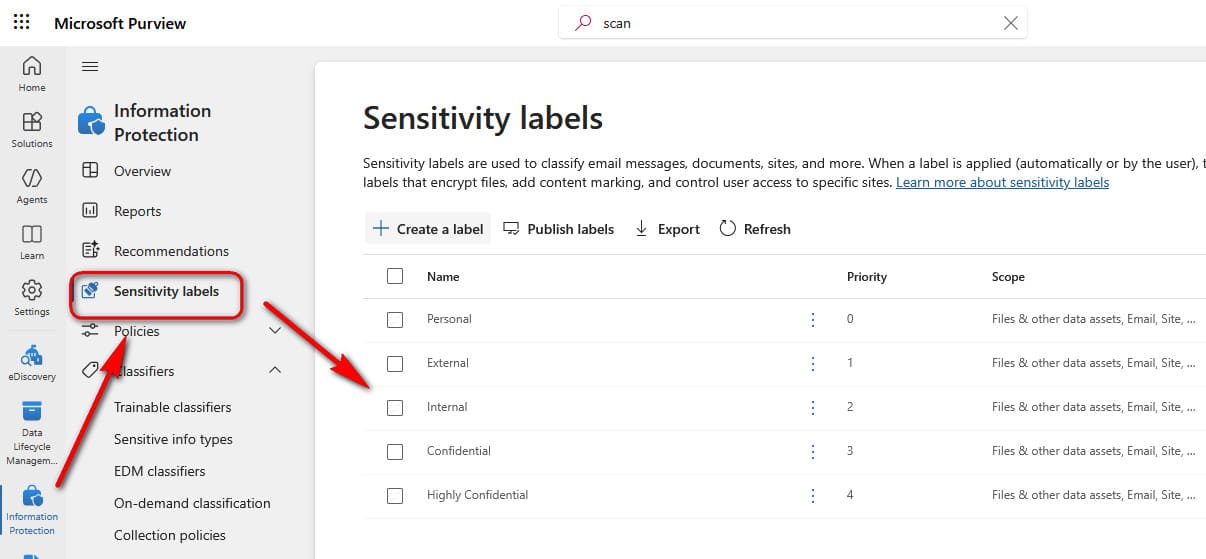
2) Once your labels are configure properly, select all of them >> Publish labels, and follow the wizard, which at the end will create a label policy, selecting at first only the user that you want to use the policy. When the open documents they must set a label before editing, and must have set a label when sending emails
Of course, the label must be created first before a policy for that label can be conceived
Information Protection Scanner; Visit Settings >> Information Protection >> Information Protection Scanner
Using Explorer, right-click >> Classify and Protect is missing
Comments powered by CComment